Rolling out Knox Suite Essentials step by step: which tasks it covers, and where Enterprise begins
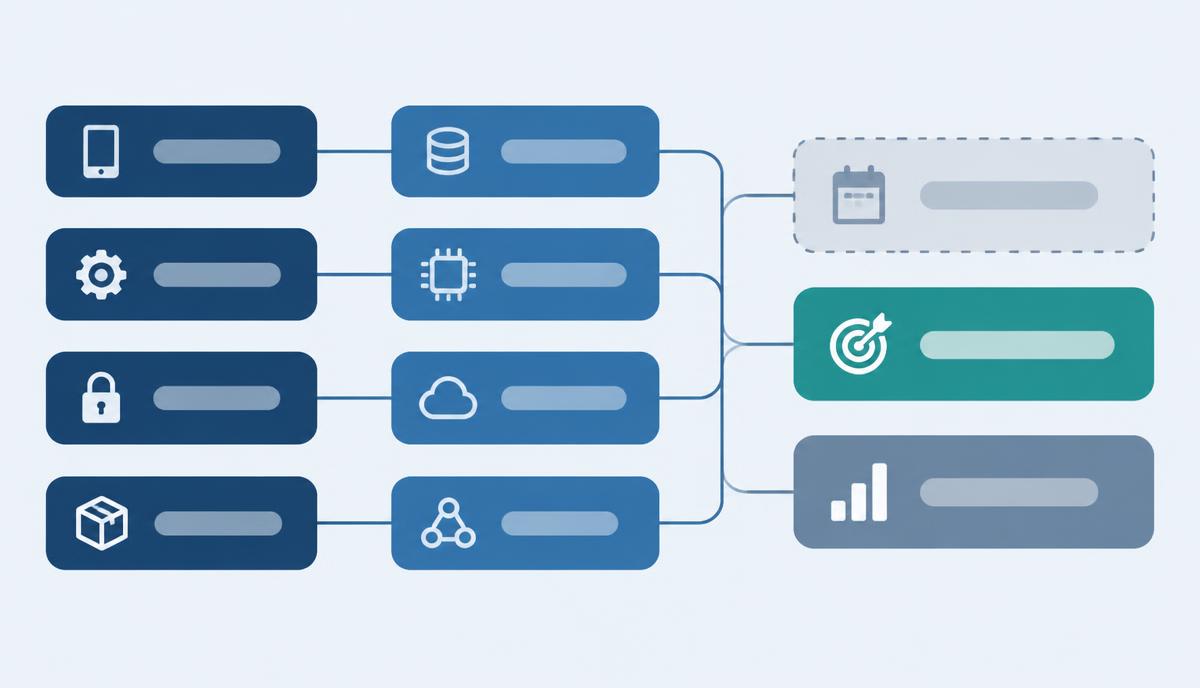
This guide starts from the typical mobile device task list of a small or mid-sized company. For each task it shows which Knox component handles it and from which plan it is available, then walks through the practical rollout order with an Essentials licence.
The task list and the plans
- Enrolment (automatic onboarding of new Galaxy devices) – Knox Mobile Enrollment standard – from the Base Plan
- Galaxy-specific policies – Knox Platform for Enterprise – from the Base Plan
- Baseline settings (Wi-Fi, password, encryption) – Knox Manage – from the Essentials Plan
- App deployment and updates – Knox Manage – from the Essentials Plan
- Restrictions and event-based policies – Knox Manage – from the Essentials Plan
- Kiosk mode – Knox Manage Kiosk Wizard – from the Essentials Plan
- Locking lost devices, selective wipe – Knox Manage – from the Essentials Plan
- Remote support and remote control (Android) – Knox Remote Support – from the Essentials Plan
- OS version pinning, scheduled updates – Knox E-FOTA – Enterprise Plan only (or standalone licence)
- Fleet diagnostics (battery, apps, security patch level) – Knox Asset Intelligence – Enterprise Plan only
- Enforced enrolment with lock – KME Advanced settings – Enterprise Plan only
The first eight items stay within the Essentials Plan. If that is your whole task list, Essentials is enough.
Rollout order with an Essentials licence
1. Activate the licence
The licence key is activated in the Samsung Knox portal, where your organisation's account and Knox Manage tenant are created. If you used a trial first, settings and enrolled devices are kept after purchase.
2. Reseller KME registration
Your authorised reseller uploads purchased Galaxy devices to Knox Mobile Enrollment. For devices you already own, agree which can be added this way and which need another enrolment method.
3. Knox Manage tenant and profiles
Create device groups (for example field phones, office tablets, Windows laptops) and profiles per group: network, password, encryption, apps. In the KME profile, specify which Knox Manage group new devices should land in.
4. Kiosk and event-based policies
Where a device must be locked to a task, build the kiosk in the Kiosk Wizard. Then add event-based rules: working hours, site Wi-Fi, SIM change, geofence. Remember that SIM-change and geofence events are Android only.
5. Knox Remote Support permissions
Decide which admin roles may start remote support sessions and with which rights: view only or control. Remote control is documented for Android devices; on non-Samsung devices the user must approve the session.
6. Make the most of the trial
The trial licence runs for 3 months on up to 30 devices and includes the full Enterprise Plan. Run the steps above on a pilot group and check along the way whether you need any Enterprise feature.
Two consoles: what to watch
The new Knox Manage console handles Android devices only. iOS/iPadOS, macOS, Windows and ChromeOS devices are managed in the original console, and settings stay in sync between the two. With a mixed fleet, decide up front who works in which interface.
When does the task list signal Enterprise?
If during rollout you find you need to pin the Android version of your Galaxy fleet (Knox E-FOTA), want fleet-wide battery and app diagnostics (Knox Asset Intelligence), or must enforce enrolment (KME Advanced settings), you need the Enterprise Plan. The switch is an SKU change; tenant settings and devices are kept – no starting over.
Rollout checklist
- Task list compiled, Essentials/Enterprise need decided.
- Trial licence requested, pilot group chosen.
- Licence activated, Knox Manage tenant created.
- Reseller KME registration of Galaxy devices completed.
- Device groups and profiles created.
- Kiosk profiles and event-based policies configured.
- Knox Remote Support roles assigned.
- For mixed fleets, use of the two consoles agreed.
- Lost-device and leaver processes documented.
If you like, we'll go through the task list with you and prepare a licence quote based on your answers – you'll find us in the Contact section.
Questions about the Essentials licence?
Request a licence quote