Uniform settings on every company phone: enrolment and profiles with Knox Suite Essentials
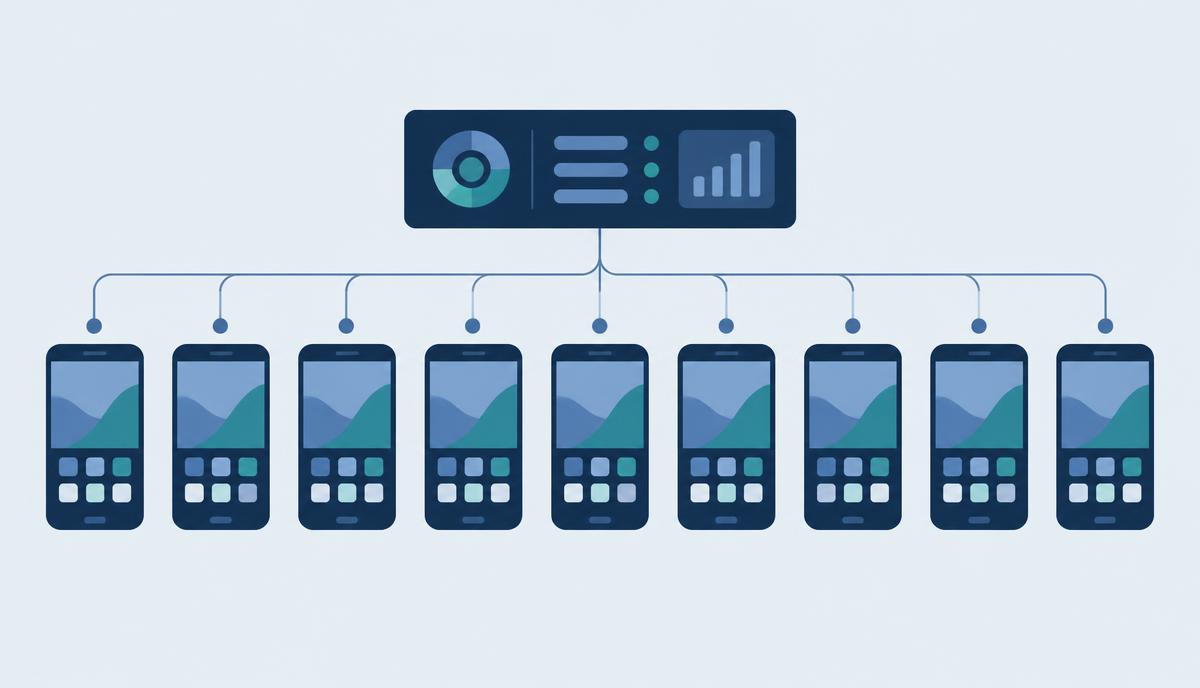
According to the sofortelefon.hu case study, BHS Trans Kft. ran more than 400 driver phones – practically each configured differently. Phones arrived gradually, different colleagues set them up, and over the years 400 different configurations emerged. This article looks at how the same situation can be handled with two Essentials Plan components: Knox Mobile Enrollment and Knox Manage.
Why many configurations hurt
The source captures the core point well: each difference on its own – a different wallpaper, app layout or permission – is trivial, but together they make a fleet impossible to follow. It really hurts when something has to change: a new client app must go on every phone, or a security parameter must be adjusted everywhere. Done manually, that means visiting 400 phones one by one, often while they are somewhere far across Europe.
BHS Trans asked for three things: uniform, easily changeable settings; phone restriction with kiosk mode; and corporate branding with logo and wallpaper.
A consistent baseline: Knox Mobile Enrollment
An orderly fleet starts when a new phone joins the company. The standard version of Knox Mobile Enrollment is part of the Essentials Plan. An authorised reseller uploads purchased Galaxy devices to Knox, and on first boot, during initial setup, each device enrols in Knox Manage automatically. It doesn't matter who unboxes it or at which site it is switched on: the phone gets the same profile.
The same applies to replacements. When a phone breaks, the new device starts with the same settings as the old one – so the question of which phone has what never arises.
Profiles, apps, branding: Knox Manage
Settings changed in one place
In Knox Manage, settings are organised into profiles assigned to device groups. When a new security parameter or notification rule is needed, you change the profile and it goes out to every device in the group. This is what the source describes as a change made in one place, in a few clicks.
App deployment beyond the store
The case study specifically highlights custom, non-Google Play apps. Knox Manage deploys and updates in-house app packages as well as Managed Google Play apps.
Kiosk and corporate branding
The single-window driver view is built with Knox Manage kiosk mode; the browser, YouTube, TikTok and system settings can be blocked. The kiosk can carry your logo and wallpaper, which can later be swapped remotely.
Results reported in the case study
„90% of driver-phone tasks were automated, a full employee's time was freed up, and errors and communication outages caused by running out of mobile data or changed phone settings were eliminated.”
These results are reported by the sofortelefon.hu case study; we add no figures of our own.
The plan boundary: enforced enrolment
One important detail: the standard Knox Mobile Enrollment in the Essentials Plan enrols devices automatically but does not enforce enrolment. If you want a device to lock when it doesn't register within a set time, that is a Knox Mobile Enrollment Advanced settings feature – not part of Essentials, only of the Enterprise Plan.
“A new phone joins the fleet” – the steps
- Order the Galaxy device through an authorised reseller channel.
- The reseller uploads the device to Knox Mobile Enrollment.
- The driver or site switches the phone on and connects it to a network.
- The device enrols in Knox Manage automatically and receives its group profile.
- Kiosk, apps and branding install automatically.
- IT checks the device status in the console and helps via Knox Remote Support if needed.
If you want a consistent baseline across your own fleet, contact us in the Contact section – we'll review what the Essentials licence covers for you.
Source: sofortelefon.hu/blog/bhs-trans-egyseges-sofortelefon-beallitasok
Questions about the Essentials licence?
Request a licence quote